





If the asset does not have a title, the option SpeechToText will be found in the Title menu, which is obtained by right-click on asset. If the asset already has a subtitle, instead of the “Speech To Text” option, the menu will contain the “Edit title” option.
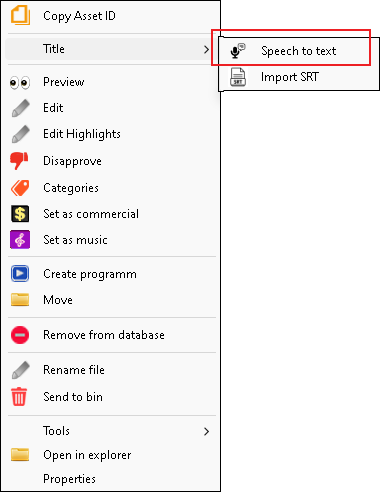
Selecting the “Speech To Text” option will open the language selection window, while selecting the “Edit title” option will automatically open the “Speach To Text” window.
LANGUAGE SELECTION WINDOW
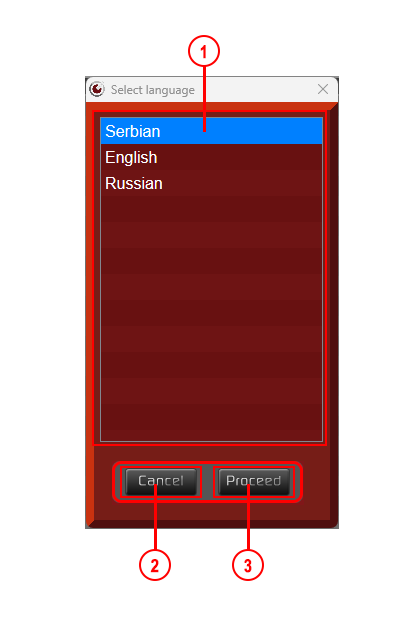
1. List of languages available for title
By selecting a language from the list of all languages and clicking the “PROCEED” button, the “Speech To Text” window will open and subtitle creation will begin.
2. Button to cancel subtitle creation
3. Button to continue creating subtitles
SPEECH TO TEXT WINDOW
If subtitle creation is in progress, the background of this window is blue. If the subtitle creation is complete, the background of the window will be red.
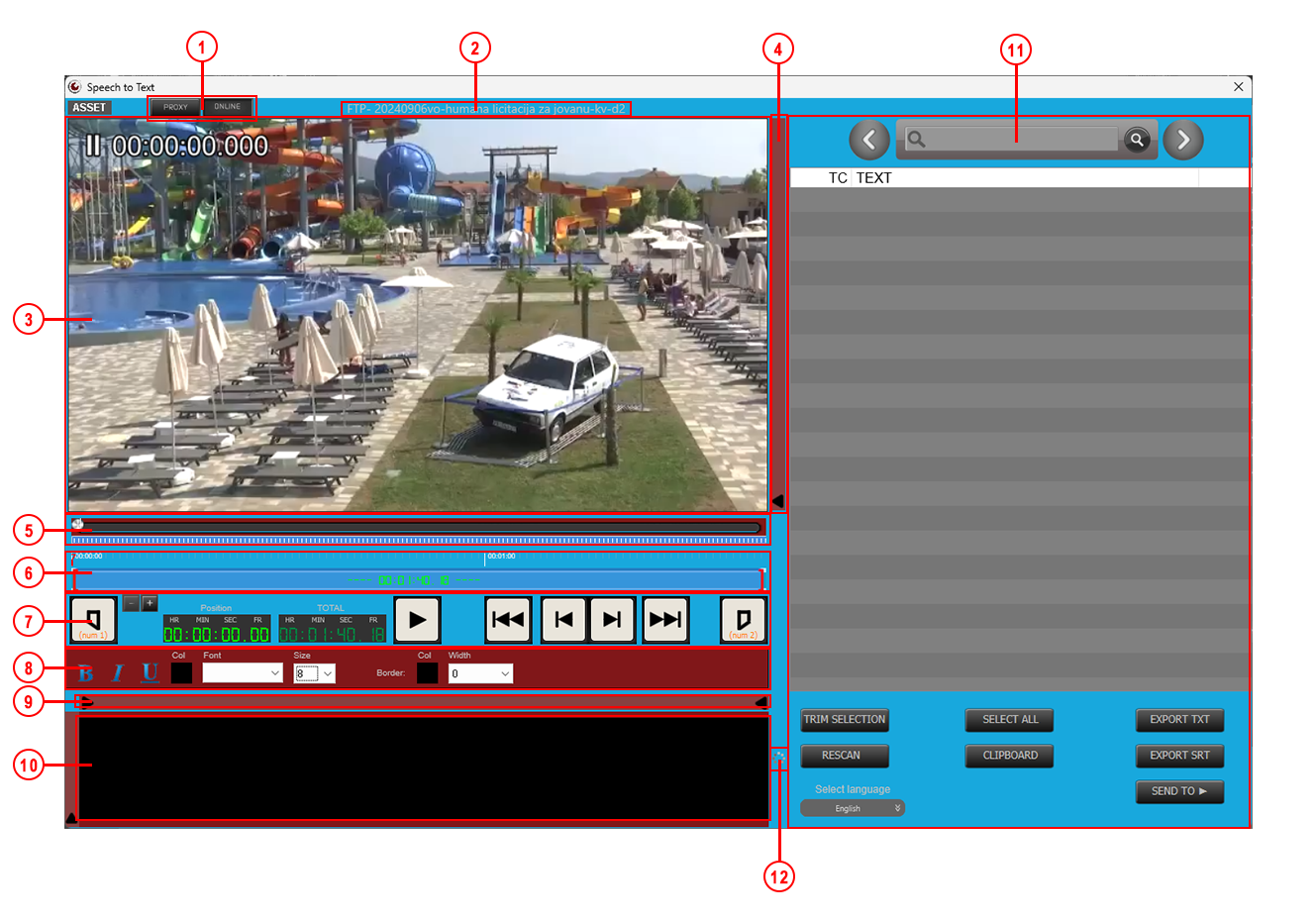
1. Indicator of the file in use
Buttons to select the version of the asset currently in use. The default version is a proxy file for faster access. In case the proxy is not created or is not available for some reason, the ONLINE (original) connection will be started automatically. Changing the version is also possible by clicking on the desired version.
2. Name of the asset
3. Preview window
A window where you can view the selected asset.
4. Slider for moving the subtitle up
With the help of this slider, you can position the subtitle in height depending on the need.
5. Graphic display of asset position – Head
A graphical representation of the position of the asset currently marked for viewing and trimming.
6. Trimming line
The line that indicates the graphic representation of the duration of the asset and on which trimming is done. By moving the position of the red brackets (“”[” and “]”), we set the beginning and end of the part we want to use for export. Above the line, numbers are marked every few minutes of asset duration for easier orientation.
7. Controls

a) Buttons for setting IN and OUT points.
Just as it is possible to determine the start and end (IN and OUT) via the trim line (4), it is also possible to do this via these buttons by rewinding the asset to the desired position and clicking on the IN or OUT button.
b) Graphic display of the elapsed time of the asset that was played in the preview window and is being edited.
If we move the slider of the asset position (Head), the time of the current position of the slider will be displayed here.
c) Graphical representation of the total duration of the asset which is played in the preview window and which is being edited. When asset playback is paused, this button changes color from white to red.
d) Play button to play the selected asset in the preview window. When the asset is paused, the button will change color from gray to red.
e) Buttons for rewinding the selected asset 10 frames forward and backward.
f) Buttons for rewinding the selected asset 1 frame forward and backward.
g) Buttons for increasing and decreasing the size of the space for trimming assets.
8. Subtitle customization tools
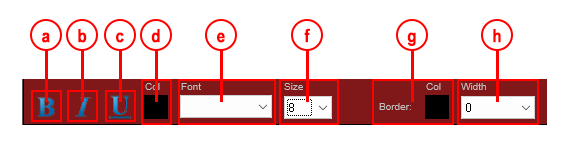
a) B – Set selected text to bold
b) I – Set selected text to italic
c) U – Set selected text to underline
d) Text color selection field
e) Drop-down menu for selecting the type of font in which the text will be printed
f) Drop down menu to select font size
g) Field for choosing the color of the border around the text (outline)
h) Drop-down menu for choosing the size of the border around the text
9. Margin slider
With the help of this slider, it is possible to adjust the left and right margins of the text.
10. Selected title
The selected subtitle will appear in this space.
11. List of titles and title tools
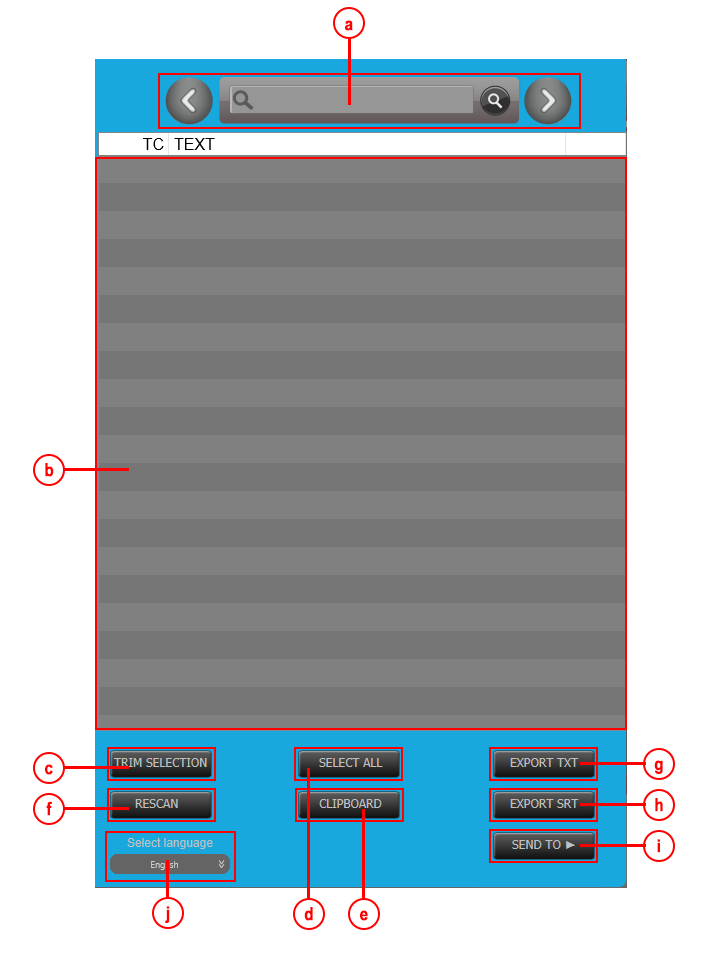
a) Subtitle search tool
You can search for tiles by entering a word in the input field and pressing the button with the “magnifying glass” icon. With the help of the “previous” and “next” buttons, you can move to the position of the next found word. in the video display window, it will automatically rewind to the position where that word is located.
b) List of all created subtitles.
This field will be populated with all created subtitles. You can read more about the list of all created subtitles in the title list section of this document.
c) Trim selection button
Selecting a subtitles from the list and pressing this button will automatically set the in and out point on the trimming line (6). The IN point will be set to the position when the first subtitle appears and the OUT point will be set to the position when the last subtitle ends.
d) Select all button
Clicking this button will select all subtitles in the subtitle list.
e) Clipboard button
By clicking on this button, the selected subtitles in the list of all subtitles will be copied to the clipboard of the computer.
f) Rescan button
Clicking this button will open a window to select the language and recreate the subtitles.
g) Export txt button
By clicking this button, you can save the subtitles to a text file on your computer.
h) Export srt
By clicking this button, you can save the subtitles to an srt file on your computer. The srt file will contain the IN and OUT times as well as the settings related to the text.
i) Send to button
By clicking on this button, all the locations assigned to the user that can be exported will appear. Once the location is selected, the trim window will open. You can read more about the trim window in the trim window section of this document.
j) Select language dropdown
From the drop-down menu, you can select the subtitle language you want to work with. If the subtitle for the selected language has been created, it will be loaded automatically, and if the subtitle is not, a window will open asking if you want to create a subtitle.