
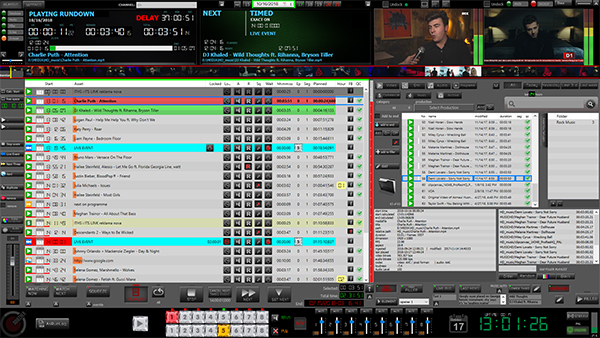

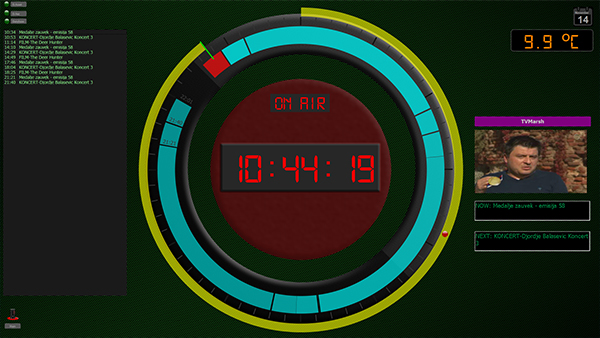
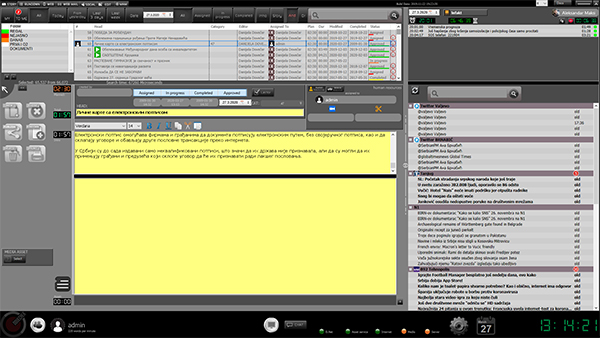
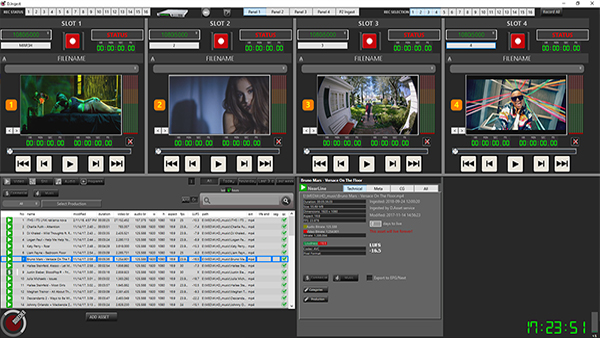
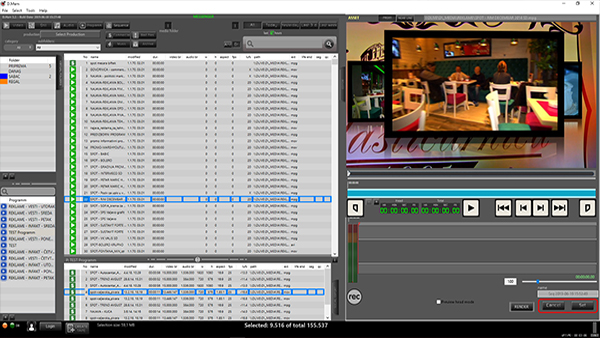





Desnim klikom na neki od aseta u listi otvoriće se meni sa opcijama. U zavisnosti od vrste aseta desni klik može, a ne mora sadržati pojedine opcije.

Copy Asset ID – Copying the ID number of the asset to the clipboard of the computer.
Title – “Title” submenu can have two states. One when the right click is done on an asset that already has a subtitle finished and the other when it is done on an asset that does not have a subtitle finished.
This is what the “Title” menu looks like when right-clicking on an asset that doesn’t have a subtitle.

Title > Speach to text – Selecting this option will open the SpeechToText module where you can create titles.
Title > Import SRT – Selecting this option will open a window for importing subtitles from an SRT file.
This is what the “Title” menu looks like when right-clicking on an asset that has a subtitle added.

moving
Title > Edit title – Selecting this option will open the SpeechToText module where you can edit titles.
Title > Import SRT – Selecting this option will open a window for importing subtitles from an SRT file.
Title > Embed to file – Selecting this option will open a window for embedding subtitles.
Preview – Selecting the preview option will open the preview window.
Edit - Odabirom opcije edit, otvoriće se editor aseta.
Edit Highlights – Selecting the edit option will open the highlights editor.
Disapprove/Approve - Koisnici koji imaju privilegiju da mogu da odobravaju assete, u meniju će imati opciju da odobre ili zabrane korišćenje nekog asseta.
BELEŠKA: Ako je aset već odobren u meniju će se nalaziti opcija "Disaprove (Zabrani"), a ako aset nije odobren za emitovanje, u meniju će se nalaziti opcija "Approve (Obobri)".
Kategorije - Odabirom opcije edit otvoriće se prozor za dodelu kategorija asetu.
Set as commercial - Aset će biti obeležen kao reklama.
BELEŠKA: Ako je aset već obeležen kao reklama onda će se u listi nalaziti opcija "Remove commercial tag" koja će skloniti obeleženje da je u pitanju reklama.
Set as music – The asset will be marked as a music video.
BELEŠKA: Ako je aset već obeležen kao muzički spot, onda će se u listi nalaziti opcija "Remove music tag" koja će skloniti obeleženje da je u pitanju muzički spot.
Create program - Odabirom ove opcije otvoriće se prozor za kreiranje bloka aseta (programa).
Move – Selecting this option will open a window for moving asset to new location.
Protect - Koisnici koji imaju privilegiju da mogu da zaštite aset od brisanja u meniju će imati opciju da to urade. Odabirom opcije protect otvoriće se dodatni meni za izbor broja dana na koliko će aset biti zaštićen od brisanja.

BELEŠKA: U koliko je korisnik ulogovan kao administrator imaće mogučnost da produži vreme trajanja "Forever" (zauvek). Ako je asetu vreme trajanja produženo na "Forever" u meniju neče postojati opcija "Protect".
Remove from database - Selektovani aset će biti obrisan. Brisanje će se obaviti samo u bazi aseta, a aset na storidžu će i dalje postojati.
Rename file - Odabirom ove opcije, izvršiće se promena imena selektovanog aseta.
Send to bin – The selected asset will be marked for deletion.
Tool - Odabirom ove opcije otvoriće se dodatni meni:

Recheck - Odabirom ove opcije, započeće procedura ponovne provere svih informacija o selektovanom asetu.
Generate proxy – Selecting this option will start the process of generating a proxy file for the selected asset in case the proxy file does not exist.
Get audio LUFS – Selecting this option will start the audio LUFSA calculation process for the selected asset.
Clear audio LUFS – Selecting this option will delete the value of the calculated audio LUFS for the selected asset.
Open in explorer - otvoriće se prozor sa lokacijom na kojoj se selektovan aset nalazi.
BELEŠKA: Ova opcija je dostupna samo korisnicima koji imaju administratorska prava.
Properties - Otvoriće se prozor sa tehničkim informacijama o asetu:
